How to Split PDF Files: Complete Guide
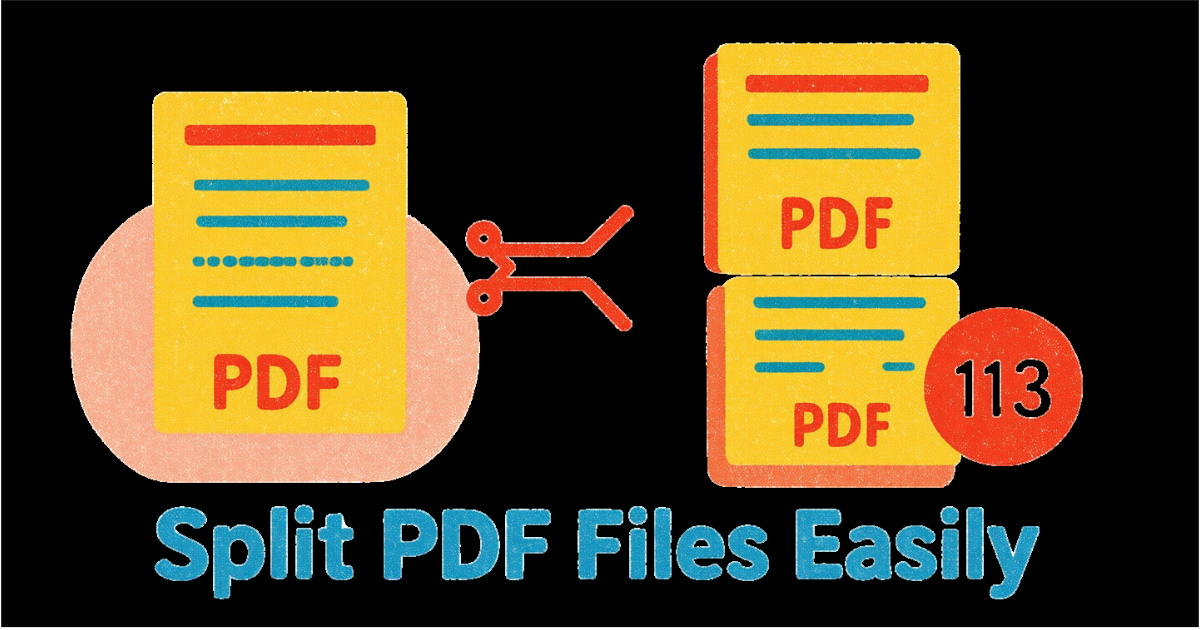
PDF splitting is essential for managing large documents, extracting specific sections, and organizing content efficiently. Whether you need to separate chapters, extract individual pages, or divide a presentation into smaller files, knowing how to split PDFs properly saves time and improves workflow efficiency.
This comprehensive guide covers everything from basic page extraction to advanced splitting techniques for optimal PDF management.
Why Split PDF Files?
Splitting PDFs solves multiple document management challenges:
Extract specific sections: Pull out relevant pages without sending entire documents
Reduce file sizes: Create smaller, more manageable files from large PDFs
Organize content: Separate mixed documents into logical sections
Share selectively: Send only necessary pages to recipients
Improve accessibility: Make large documents easier to navigate and download
Manage storage: Archive sections separately for better organization
Splitting PDFs is a lossless process—extracted pages maintain 100% of their original quality, formatting, and embedded content.
Understanding PDF Splitting Methods
Method 1: Extract Specific Pages
Extract selected pages into a new PDF:
Choose exact pages (e.g., pages 5, 7, 10-15)
Create focused documents with only needed content
Perfect for extracting forms, sections, or chapters
Maintains original quality and formatting
Method 2: Split by Page Ranges
Divide PDF into multiple documents by ranges:
Split every X pages (e.g., every 5 pages)
Divide into equal-sized documents
Separate by chapter or section markers
Ideal for distributing large documents
Method 3: Split into Individual Pages
Convert each page into a separate PDF:
One file per page
Useful for page-by-page distribution
Simplifies individual page management
Perfect for creating slide decks or portfolios
How to Split PDFs with PDFHaul
PDFHaul makes PDF splitting simple and precise. Watch this demonstration:
Step 1: Upload Your PDF
Visit the PDF Split tool and upload your document. PDFHaul supports:
Files up to 100MB
All PDF versions and formats
Documents with any number of pages
Drag-and-drop or click to browse
Step 2: Select Split Method
Choose how you want to split your PDF:
Extract Specific Pages
Enter page numbers (e.g., 1, 3, 5-10)
Select non-consecutive pages
Preview selected pages before extraction
Split by Range
Divide into equal parts
Split every N pages
Custom range splitting
Split All Pages
One PDF per page
Automatic sequential naming
Bulk extraction
Use page preview to verify you're selecting the correct pages before splitting.
Step 3: Download Split Files
Click "Split PDF" and download your files. PDFHaul provides:
Individual file downloads
ZIP archive of all split files
Original file name preservation with sequential numbering
Advanced Splitting Techniques
Page Range Splitting
PDFHaul supports flexible page range selection:
Single Page Extraction
Extract one page: Enter page number (e.g., 5)
Creates a new PDF with just that page
Useful for isolating specific content
Page Range Extraction
Extract consecutive pages: Enter range (e.g., 1-10)
Creates a new PDF with specified pages
Maintains original page order
Multiple Range Splitting
Split into multiple files at once
Define multiple ranges (e.g., 1-5, 6-10, 11-15)
Each range becomes a separate PDF
Download all as individual files or ZIP
Specific Page Selection
Extract non-consecutive pages: 1, 5, 10, 15
Combines selected pages into one PDF
Preserves selected page order
Specify exact page numbers or ranges to extract precisely what you need from your PDF.
Split Every N Pages
Divide PDFs into equal-sized chunks:
Choose page count: Decide pages per file (e.g., every 10 pages)
Automatic division: PDF splits into equal segments
Remaining pages: Last file contains any leftover pages
Batch download: Get all split files at once
Splitting Best Practices by Use Case
Business Documents
For reports, proposals, and presentations:
Extract executive summaries separately
Split appendices from main content
Separate financial data for selective sharing
Create focused documents for stakeholders
Legal Documents
For contracts and legal filings:
Extract signature pages
Separate exhibits and attachments
Create individual agreement sections
Maintain original pagination references
Academic Papers
For research and publications:
Extract abstract and introduction
Separate methodology from results
Create standalone sections for review
Share specific chapters with collaborators
E-books and Manuals
For large reference documents:
Split by chapter or topic
Extract table of contents
Separate index and glossary
Create focused topic guides
Presentations
For slide decks and training materials:
Extract specific slides
Create section-specific handouts
Separate presenter notes
Build custom slide sequences
Common Splitting Scenarios
Scenario 1: Extract Contract Signature Pages
Problem: Need only signature pages from 50-page contract
Solution:
Identify signature page numbers (usually last 1-2 pages)
Extract those specific pages
Distribute for signing without full contract
Scenario 2: Divide 200-Page Manual
Problem: 200-page manual too large for email
Solution:
Split into 4-5 sections (40-50 pages each)
Name sections descriptively (Manual_Part1, Manual_Part2)
Include section overview in each file
Scenario 3: Separate Mixed Scanned Documents
Problem: Scanned batch contains multiple separate documents
Solution:
Identify document boundaries
Extract each document as separate file
Rename files appropriately
Archive or delete original
Scenario 4: Create Individual Product Sheets
Problem: Catalog with one product per page
Solution:
Split into individual pages
Name files by product
Use for individual product marketing
Update individually as needed
Organizing Split Files
After splitting, organize files effectively:
File Naming Conventions
Use descriptive, consistent names:
Original: Annual_Report_2025.pdf
Split: Annual_Report_2025_Executive_Summary.pdf
Split: Annual_Report_2025_Financial_Data.pdf
Split: Annual_Report_2025_Appendix.pdf
Folder Structure
Create logical folder hierarchies:
Documents/ Annual_Report_2025/ 01_Executive_Summary.pdf 02_Operations_Review.pdf 03_Financial_Data.pdf 04_Appendices.pdf
Metadata Management
Preserve important document information:
Maintain original creation dates
Update modification dates
Include source file reference
Tag with relevant keywords
Troubleshooting Splitting Issues
Pages Won't Split
If splitting fails:
Check if PDF is password-protected
Verify PDF isn't corrupted
Ensure sufficient page numbers exist
Try uploading again
Solution: Remove password protection or repair PDF before splitting.
Extracted Pages Missing Content
If content disappears:
Check for layer visibility issues
Verify form field preservation
Look for annotation settings
Solution: Use settings that preserve all content layers and form fields.
File Sizes Still Too Large
If split files remain large:
Consider compressing after splitting
Check for high-resolution images
Look for embedded unnecessary content
Solution: Compress split files to further reduce size.
Split Pages Look Different
If formatting changes:
Font embedding may be affected
Color profiles might shift
Image compression could vary
Solution: Use quality-preserving split settings and verify results.
Security Considerations
Splitting PDFs affects security:
Password protection: Split files lose original password protection
Digital signatures: May be invalidated by splitting
DRM restrictions: Some PDFs prevent splitting
Metadata: Sensitive information may remain in split files
Always review split files for sensitive metadata before distribution. Remove author information, comments, and tracked changes if necessary.
Combining with Other Operations
Maximize efficiency by combining splitting with:
Split + Compress
Split large PDF into sections
Compress each section separately
Achieve optimal size reduction
Maintain quality in important sections
Split + Merge
Split multiple source PDFs
Extract needed pages from each
Merge selected pages into new document
Create custom compilations
Split + Rotate
Split PDF into pages or sections
Rotate individual pages as needed
Merge back together if desired
Fix orientation issues selectively
When NOT to Split
Avoid splitting in these situations:
Legally binding documents: May invalidate signatures or certification
DRM-protected content: Violation of terms of use
Continuous narratives: Could damage reading flow
Cross-referenced documents: May break internal links
Indexed documents: Could invalidate page number references
Automation and Workflows
For regular splitting tasks:
Create Splitting Templates
Define reusable patterns:
Standard chapter extraction (pages 1-10, 11-20, etc.)
Signature page extraction (last 2 pages)
Section-based splits (every 25 pages)
Custom business-specific patterns
Batch Processing
Handle multiple files efficiently:
Collect similar documents
Apply consistent split rules
Automate naming conventions
Review and verify results
PDFHaul supports processing up to 50 files simultaneously for efficient batch splitting.
Conclusion
PDF splitting is a fundamental document management skill that enables better organization, sharing, and workflow efficiency. With the right tools and techniques, you can extract exactly what you need while maintaining quality and organization.
Key Takeaways:
Choose split method based on your specific needs
Use descriptive naming for split files
Verify extracted content before distribution
Combine splitting with compression for optimal file sizes
Organize split files systematically
Ready to split your PDFs? Try PDFHaul's split tool now - free, fast, and precise.
Frequently Asked Questions
Q: Does splitting PDFs reduce quality?
A: No, splitting is completely lossless. Extracted pages maintain 100% original quality, formatting, and embedded content.
Q: Can I split password-protected PDFs?
A: You must unlock password-protected PDFs before splitting. After splitting, you can apply new password protection to split files.
Q: How many pages can I extract at once?
A: PDFHaul supports extracting any number of pages from documents up to 100MB in size.
Q: Will split files maintain bookmarks and links?
A: Bookmarks and links within extracted pages are preserved. Links to pages outside the extracted range will not work.
Q: Can I split scanned PDFs?
A: Yes, splitting works on all PDF types including scanned documents, regardless of whether they contain searchable text.
Q: How do I split a PDF into equal parts?
A: Use the "Split by Range" option and specify the number of pages per section. PDFHaul will automatically divide your document into equal parts.
Written by PDFHaul Team
Expert team specializing in PDF processing and document management. We share practical tips, tutorials, and best practices to help you work smarter with PDFs.
View all articles